

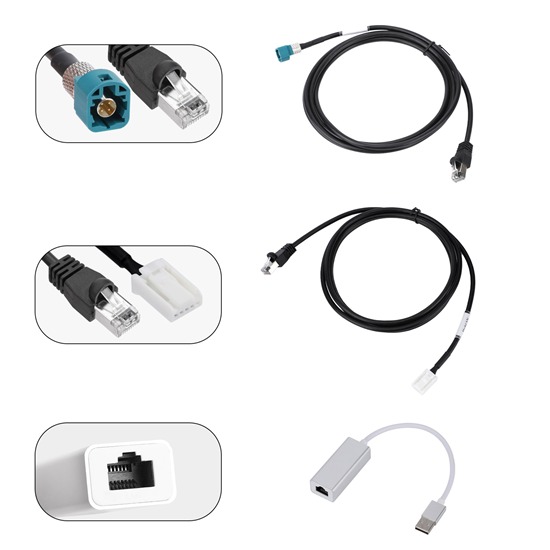

Launch X431 Tesla LAN Network Port Diagnostic Connector for Enable Tesla Service Mode
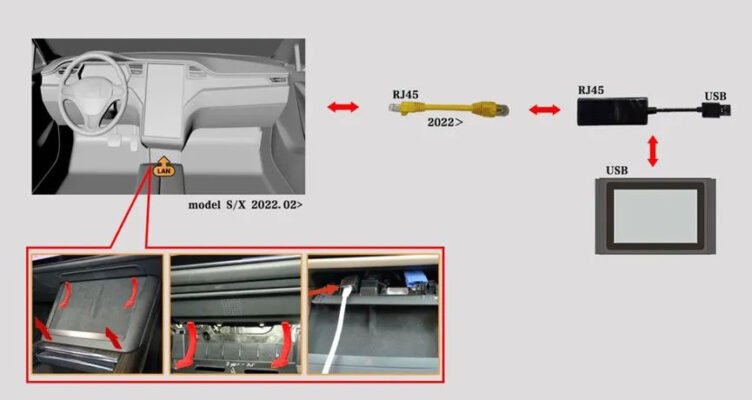
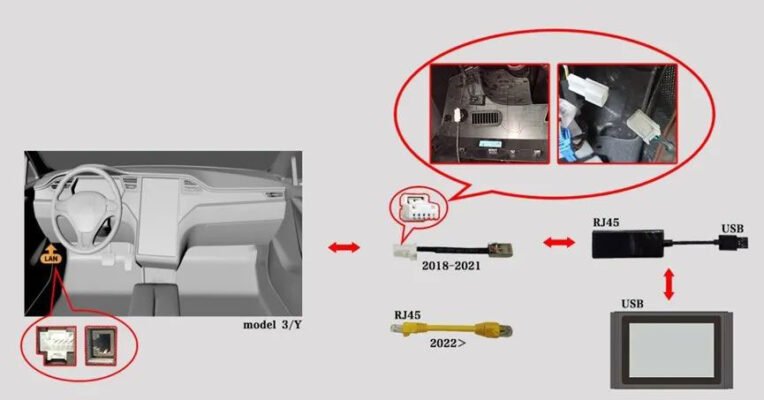
Used in local area network LAN function car enters Service Mode, currently supported products: X-431 PAD V, PAD VII series, EV MAX, X431 PRO 3S+ V3.0/V5.0 etc diagnostic tools with Simplified Chinese, Traditional Chinese, Japanese, Korean, Arabic and Russian software.
Launch X431 Tesla LAN Network Port Diagnostic Connector
Function:–
Used in local area network (LAN) function (car enters maintenance mode), currently supported products: X-431 PAD V, PAD VII series, EV MAX, X431 PRO 3S+ V3.0/V5.0 etc diagnostic tools with Simplified Chinese, Traditional Chinese, Japanese, Korean, Arabic and Russian Software.
Recent Update:
Tesla Software V10.41
Optimize the maintenance mode of LAN function of Tesla Processor for Model S before 2020.
The Launch X431 Tesla LAN Network Port Diagnostic Connector is a specialized adapter used to enable Service Mode (maintenance mode) on Tesla Model 3, Y, S, and X vehicles. It allows compatible Launch X431 diagnostic tablets to interface with the vehicle’s local area network for advanced diagnostics and system tests.
Key Functions & Compatibility
Primary Function: Specifically designed to trigger Service Mode, which unlocks deeper diagnostic screens and maintenance procedures on the vehicle’s main display.
Supported Devices: Works with high-end Launch scanners, including the X-431 PAD V, PAD VII series, EV MAX, and X431 PRO 3S+ V3.0/V5.0.
Vehicle Coverage:
Model 3 / Model Y: All versions from 2018 onwards.
Model S / Model X: Models from 2014 onwards, including those with Tegra chips and newer 2022+ versions.
Connection Guide
The physical port location and required cable vary by vehicle year and model:
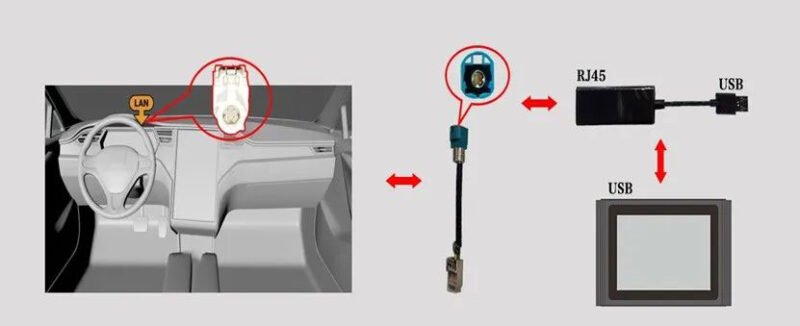
Model 3 / Model Y: The LAN port is typically found on the lower left of the steering wheel.
Pre-2022: Uses a 5-pin port.
2022+: Uses a standard RJ45 port.
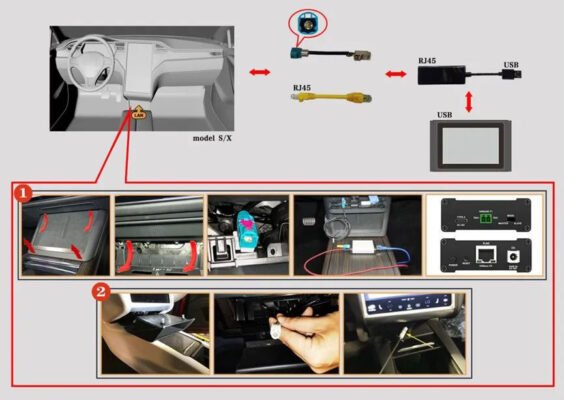
Model S / Model X (Post-2019): The port is generally located on the lower right front of the passenger side.
Post-March 2018: Uses a 4-pin port.
How to Enable Service Mode with X431
Hardware Connection: Connect the dedicated LAN adapter to the vehicle’s LAN port. Connect the other end to the RJ45 port of your scanner (or use a USB-to-RJ45 converter for scanners without a direct port).
Scanner Settings: Set the X431 scanner to Bluetooth communication mode. To access the hidden menu for this, click VCI in the “Personal Center” more than 8 times.
Software Selection: In the Tesla software on your device, choose Manual Selection, pick your model, and select the LAN function.
Activation: Follow the on-screen prompts to “Enter Service Mode.” Once successful, a red “Service Mode” notification will appear on the Tesla’s center touchscreen.


Reviews
There are no reviews yet.